How to Make a Link to Your Facebook

Posted by Unknown On Wednesday, October 30, 2013 0 comments
In June 2009, Facebook rolled out its usernames feature, which allows you to choose a custom name for your profile, one that allows you to link others to it using a simplified "facebook.com/username" URL. If you haven't already done so, choose your custom Facebook username so you can create a link to your Facebook profile and send it to others.


Instructions:

  • Navigate to Facebook and log in to your account. Click the "Account" button in the upper right corner and click "Account Settings."
  • Click the "Set" button to the right of "Username" in the "Settings" tab. Enter your desired username, and then click "Check Availability."
  • Click "Confirm" to confirm your selection. Send your friends a URL in the format of "facebook.com/username" to link them to your account. For example, if your username is "example12345," your Facebook URL is "facebook.com/example12345."
READ MORE

How to Embed a Link in a Facebook Comment

Posted by Unknown On 0 comments
Facebook helps you keep in touch with friends, family and business partners. If you come across an interesting article on the Internet, you may want to share that link with your Facebook friends. You don't need to know any HTML to embed a link in a Facebook comment. You can use the comment box to share your find in an instant without any programming knowledge at all.


Instructions:

  • Sign into your Facebook account.
  • Navigate to the place where you would like to leave a comment, then cut and paste the URL into the comment box. The URL will show as text.
  • Press "Enter." The comment will post and the URL will be turned into a hyperlink.

READ MORE

How to Embed a Hyperlink in a Facebook Status

Posted by Unknown On 0 comments
If you paste a URL into the status update text box at the top of your Facebook news feed, it is transformed into a click-able link, with a thumbnail from the website (if one is available). You can include your status update or commentary in the text box along with the link.

Instructions:

  • Click "Update Status" after signing in to your Facebook account.
  • Enter your status update in the "What's On Your Mind?" text box that appears. Type or paste the link you want to share into the text box.
  • Click on the audience selector to set the privacy for your post. You can make it public, available to all of your friends or available only to a select group.
  • Click "Post" to post your status and link to Facebook.
READ MORE

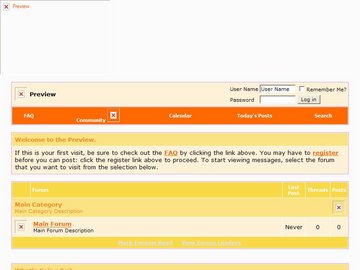
Latest vbulletin 3 Templates Free Download, Radio

Posted by Unknown On Saturday, October 5, 2013 0 comments
READ MORE

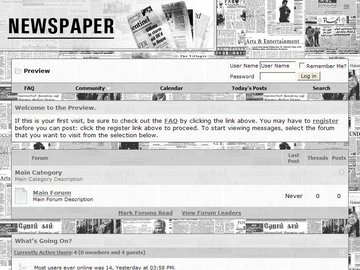
Newspaper Latest vbulletin 3 Templates Free Download,

Posted by Unknown On 0 comments
READ MORE

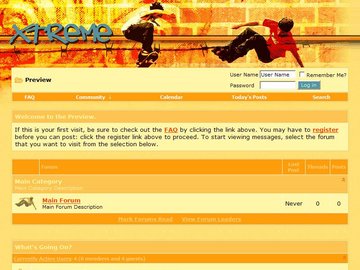
Latest vbulletin 3 Templates Free Download, Xtreme

Posted by Unknown On 0 comments
READ MORE

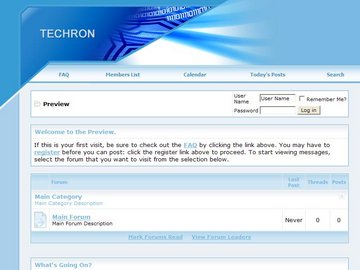
Latest vbulletin 3 Templates Free Download, Techron

Posted by Unknown On 1 comments
READ MORE

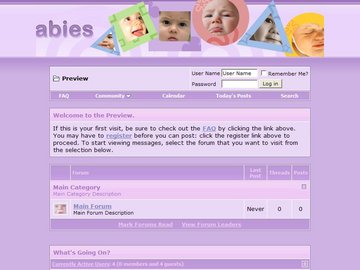
Babies Latest vbulletin 3 Templates Free Download,

Posted by Unknown On 0 comments
READ MORE

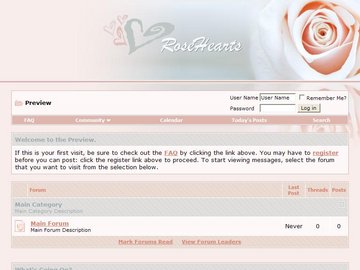
Latest vbulletin 3 Templates Free Download, Rose Hearts

Posted by Unknown On 0 comments
READ MORE

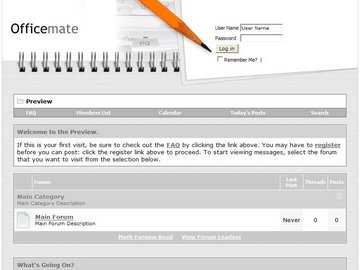
Latest vbulletin 3 Templates Free Download, Office

Posted by Unknown On 1 comments
READ MORE